
Key Takeaways
- Google is shutting down Google Podcasts, but you can transfer your subscriptions to other platforms like YouTube Music, Spotify, Apple Podcasts, and Pocket Casts.
- To transfer your Google Podcasts subscriptions to YouTube Music, you can use a built-in feature.
- To transfer your podcasts to podcast apps like Pocket Casts and PodBean, you can also use a direct OPML file import/export.
- To transfer your podcast subscriptions to Spotify, you’ll need to use a third-party tool called Pod Importer.
Google is shutting Google Podcasts down in April 2024. Thankfully, it’s possible (and relatively easy) to transfer your subscriptions to other major podcast platforms. Here’s how to transfer your podcasts from Google Podcasts to YouTube Music, Spotify, Apple Podcasts, and Pocket Casts.
1. How to Transfer Your Google Podcasts Subscriptions to YouTube Music
YouTube Music is one of the best Google Podcasts alternatives because of how easy it is to import your podcast subscriptions. With just a few taps between apps, you will have all your favorite shows moved over to YouTube Music.
To export your podcast subscriptions to YouTube Music, follow these steps:
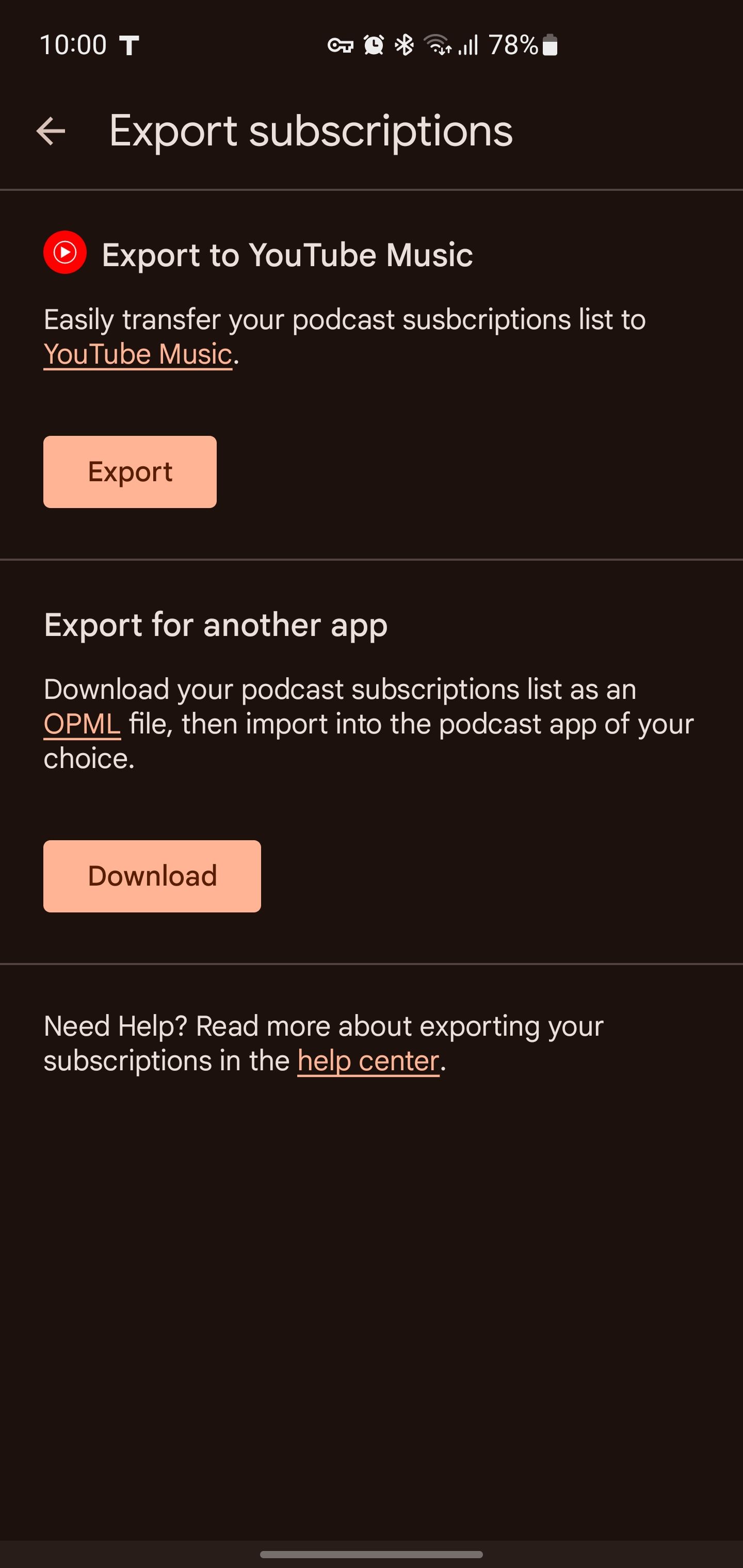
- Open Google Podcasts on your mobile device and tap Export subscriptions in the banner at the top.
- Under Export to YouTube Music, tap Export. This will automatically open up the YouTube Music app. If you don’t already have YouTube Music installed, it’ll ask you to install it, so do that first.
- Tap Transfer as [Your email associated with YouTube Music] to start the migration process. You will see a notice that adding third-party hosted podcasts to your YouTube Music library may not adhere to YouTube’s Community Guidelines. Tap Continue to proceed and wait a few seconds for the transfer to complete.
- Tap Library to view and play your newly added podcast shows.

Shows transferred from Google Podcasts don’t live on YouTube’s servers. That’s why they’ll have a little RSS badge next to them.
This easy export functionality may be one of the benefits of choosing YouTube Music. But the tool is not available for everyone.
If you don’t see the export option in your Google Podcasts app, use the Google Takeouts method described below.
2. How to Transfer Your Google Podcasts Subscriptions With an OPML Import
Several podcast apps support direct OPML file imports and exports, which lets you download your subscription data and transfer it to another app. Some good examples of these apps include:
The process involves first downloading an OPML file from Google Podcasts and then importing it into your new app.
How to Get Your Google Podcasts Export File
There are two methods for exporting your Google Podcasts data. While it’s easiest to do this within the Podcasts app, some users don’t have the export option—in which case they’ll need to use Google Takeout.
To export your subscriptions from within Google Podcasts:
- Launch Google Podcasts on your device
- Tap Export Subscriptions at the top of the screen.
- Underneath Export for another app, tap Download.
- You’ll get a notification when the OPML file finishes downloading


If you can’t find the export subscriptions banner, Google Takeout also lets you download your Google Podcasts account data, including your podcast subscriptions, for transfer.
Follow these steps to access your podcasts OPML file:
- Visit takeout.google.com and log in to your Google account.
- Under Select data to include, you may want to tap Deselect all before ticking the box next to Google Podcasts. Then tap Next step.
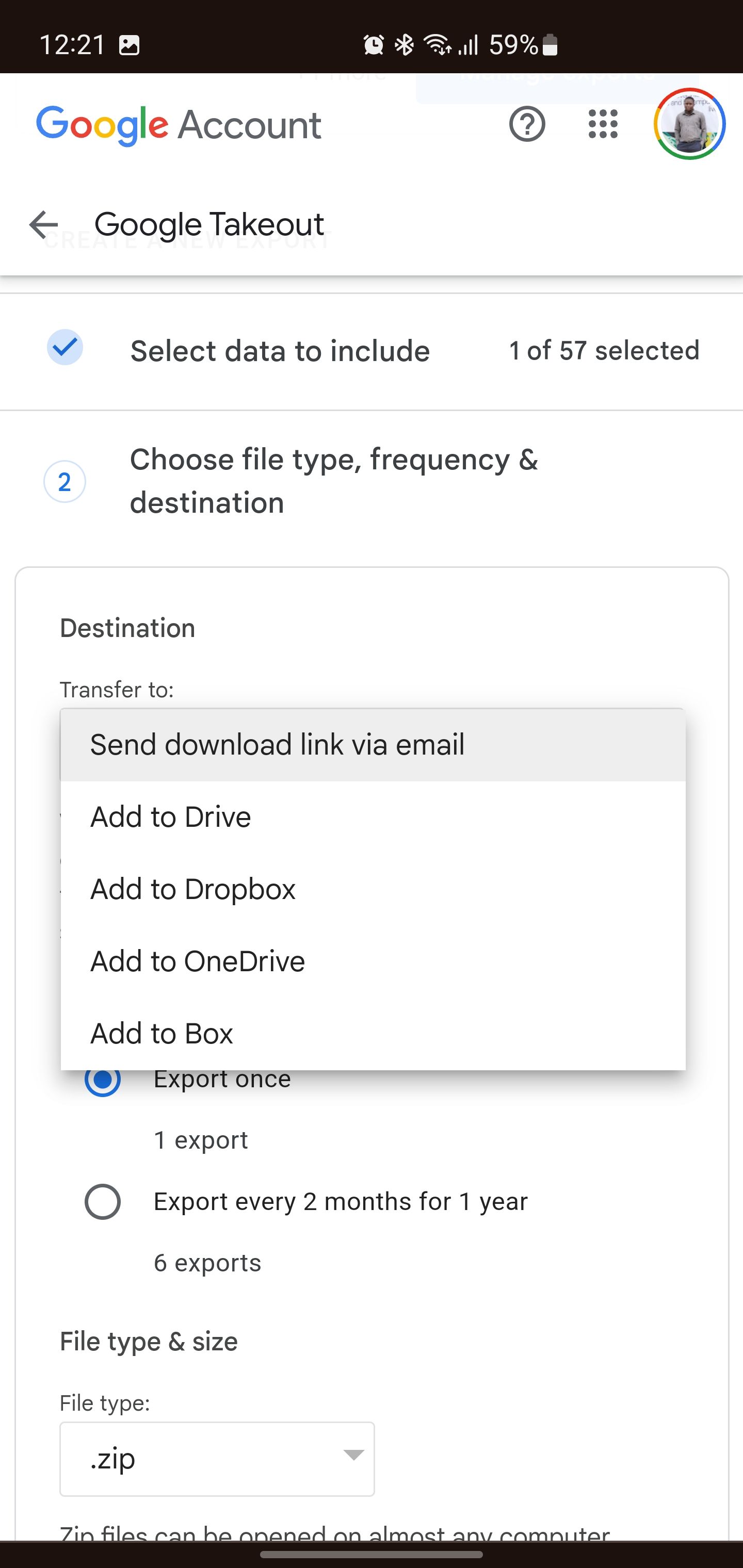
- In the Transfer to drop-down menu (under Destination) choose any option you prefer: Send download link via email, Add to Drive, Add to Dropbox, Add to OneDrive, or Add to Box. In this case, we chose to Add to Drive.
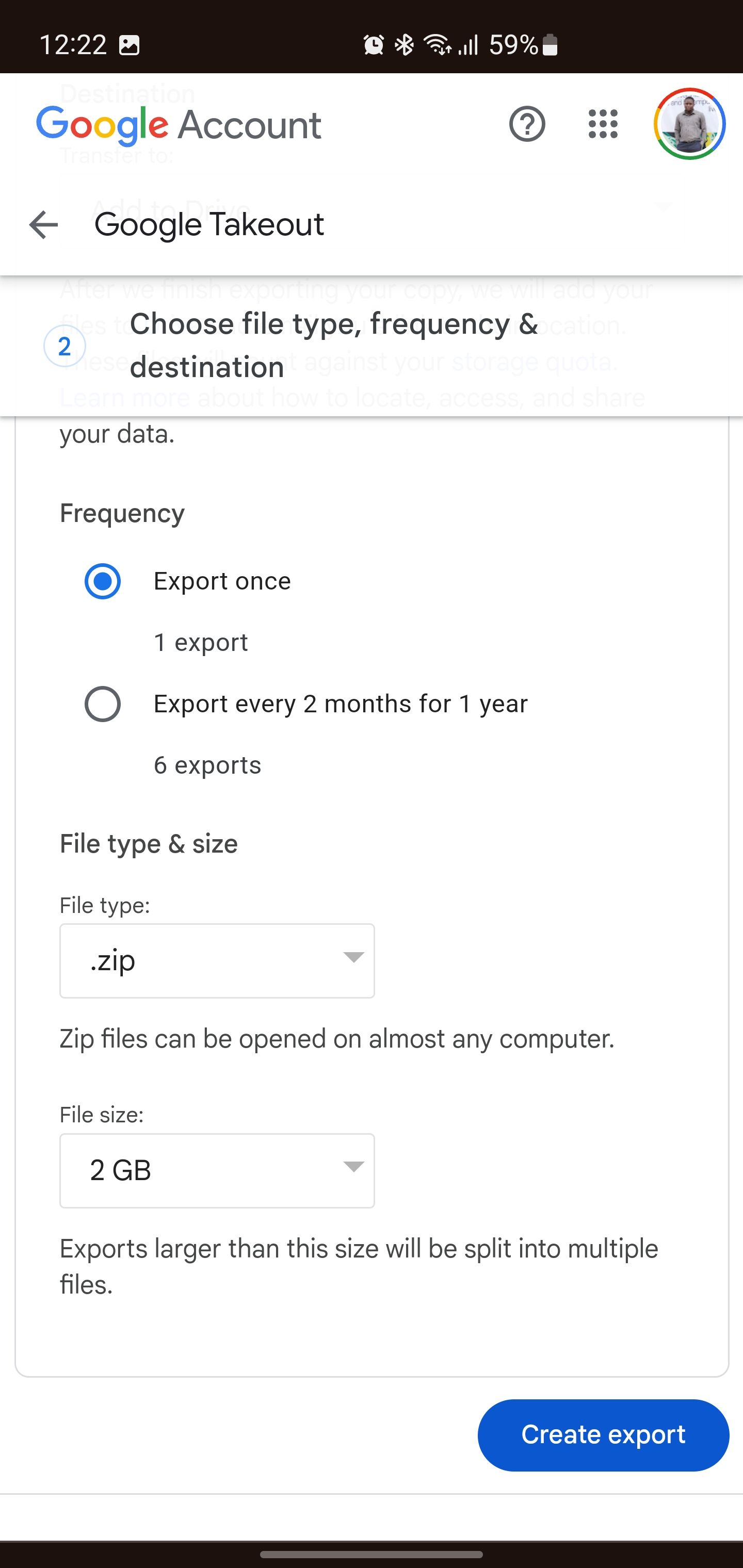
- Make sure the frequency is set to Export once, and the file type is .ZIP.
- Scroll down and tap Create export.
- Enter your email password to verify your identity and initiate the export.
- Once your export is ready, tap Open in Drive. The file name is takeout.zip.
- Tap the three vertical dots at the top right and tap Download.
- Once downloaded, navigate to the file’s destination on your device and extract the ZIP file’s contents. The location of the OPML file after extraction is Takeout > Google Podcasts > Subscriptions > Subscriptions.opml.


How to Import Your Google Podcasts OPML File
Once you have your subscriptions export file, you can import it to your desired podcast app. Here, we use Pocket Casts for illustration purposes, but the steps apply similarly to other podcast apps with support for OPML imports.
- Open your new preferred podcast app.
- Locate the Import OPML feature (usually in settings or a sidebar menu).
- Navigate to and select the OPML file you exported from Google Podcasts.
- The new podcast app will parse the OPML file and import all your subscriptions from Google Podcasts.
3. How to Migrate Your Google Podcasts Subscriptions to Spotify
There is no official way to export your podcast subscriptions from Google Podcasts to Spotify. Spotify also doesn’t have a native feature for importing OPML files.
However, you can use a third-party tool called Pod Importer to transfer your subscriptions from Google Podcasts to Spotify.
Once you have downloaded your Google Podcasts subscription data using the built-in app export tool or Google Takeout, it’s time to head to Pod Importer to transfer everything to Spotify:
- Go to the Pod Importer website and tap Sign in with Spotify to connect to your Spotify account.
- Tap Agree to grant access permission to Pod Importer.
- Tap Choose File and navigate to the OPML file you downloaded from Google Podcasts or Google Takeout, and then tap Submit.
- Pod Importer will parse the OPML file and display all of the Google Podcasts shows contained in the file. You can go through and check the box next to Subscribe for each podcast you want to transfer into your Spotify library. Or simply tap Select All to migrate your entire Google Podcasts library in one batch.
- Finally, tap Import shows into Spotify to migrate your selected podcasts into your Spotify library.
In some cases, you may encounter minor mismatches between podcast names in Google Podcasts and Spotify. If that occurs, check the box next to a podcast marked Incorrect Match to omit that particular podcast transfer. This ensures only correctly matched podcasts get imported into your Spotify account.
4. You Can Also Manually Add Google Podcasts to Apple Podcasts and Other Podcast Platforms
If your target podcast platform lacks OPML import functionality like Apple Podcasts, you may have to search for and re-subscribe to each podcast one by one. This can be time-consuming and tedious, especially if you have a lot of podcasts.
However, most podcasts syndicate their content via an RSS feed URL. So, if you can obtain a show’s direct RSS feed link, you can subscribe simply by pasting this URL rather than searching.
Though faster, RSS URLs may not be readily accessible across all podcast producers.
To import a podcast’s RSS feed on Apple Podcasts:
- Open the Apple Podcasts app.
- Tap Library in the bottom menu bar and tap Follow a Show by URL.
- Paste the RSS feed link and tap Follow to subscribe.
This is not the easiest method, but may be necessary if your podcast platform doesn’t support any of the other methods.
We’d recommend getting your Google Podcasts subscriptions transferred sooner rather than later. An OPML file containing your subscriptions comes in handy for supported podcast apps, allowing for a bulk import. And if your new podcast app doesn’t have that option, prepare to add them manually.