
Key Takeaways
- USB 2.0 and USB 3.0 are widely used and have specific applications, with USB 3.0 being faster and able to support power-hungry devices like SSDs.
- USB ports and connectors are color-coded to identify their version, but some manufacturers use the wrong color, causing misconceptions about performance.
- Use free applications like USB Device Tree Viewer or the lsusb command in Linux to accurately identify the USB version of a peripheral and its performance level.
USB is the accepted standard for powering and transferring data from computer peripherals. However, some device manufacturers do not adhere to USB color standards, making it difficult to identify what USB type you are using.
Fortunately, there are multiple ways you can find out the true speed of a USB port, as well as whether you should be using USB 2.0 or USB 3.0.
USB 2.0 vs. USB 3.0: What’s the Difference?
|
Feature |
USB 2.0 |
USB 3.0 |
|---|---|---|
|
Release Date |
April 2000 |
November 2008 |
|
Data Transfer Rate |
Up to 480 Mbps |
Up to 5 Gbps |
|
Max Current |
500 mA |
900 mA |
|
Power Management |
Less efficient |
More efficient |
|
Bandwidth |
Single direction (one-way communication at a time) |
Dual direction (two-way communication) |
|
Cable Length |
Up to 5 meters without hubs |
Up to 3 meters without hubs |
Released in 2000, USB 2.0 was an upgrade to USB 1.0. It has a maximum transfer rate of 480Mbps, and USB host ports can deliver up to 500 milliamps.
USB 3.0 was released in 2008 and significantly upgraded transfer rates and power delivery. At 5Gbps, it’s ten times faster than USB 2.0. It also supplies more current at 900 milliamps, which means it can support power-hungry hard disks and SSDs.
Furthermore, USB 3.0 has additional pins for faster data transfer. Using them, USB 3.0 can read and write data simultaneously. This is called full-duplex. USB 2.0, on the other hand, can do half-duplex only (read or write at a time). The additional pins are tiny and are placed deep inside the USB pin. It is hard to spot the tiny pins with the naked eye, and because of that, it is difficult to judge the USB standard of the device.
What Is the USB Color Code, and What Do the Colors Mean?
Both USB 2.0 and USB 3.0 connectors appear alike from the outside. But there are a couple of ways to find the USB type.
The easiest way to check if you’re using USB 2.0 or USB 3.0 is to check the USB port color. Type A USB ports (there are many types of USB port) are color-coded to indicate their specifications and generation.
|
Color |
USB Specification |
Max. Speed |
|---|---|---|
|
Black or white |
USB 2.0 |
480Mbps |
|
Blue |
USB 3.0 |
5Gbps |
|
Teal |
USB 3.1 Gen 2 |
10Gbps |
|
Red |
USB 3.2 |
20Gbps |
The USB port color should quickly identify the USB specification of the peripheral—but, unfortunately, that’s not always the case.
Why USB Port Color Is Not an Accurate Indicator
The USB 3.0 specification recommends the color blue for USB 3.0 connectors and plugs, and USB equipment manufacturers generally follow the convention. However, some manufacturers use blue-colored inserts for USB 2.0 peripherals, typically to trick the user, who will assume that the device is USB 3.0 but receives sluggish performance.
How to Tell If You’re Using USB 2.0 or USB 3.0
If the device has a blue port indicating USB 3.0, but you’re not getting faster data transfers, it could be that you’re actually using USB 2.0. Thankfully, there are a couple of ways to tell if this is the case, starting with Windows.
Windows
On Windows, you can use a free app called USB Device Tree Viewer. Unlike the built-in Windows Device Manager, it shows the USB standard of the connected peripherals.
- Download USB Device Tree Viewer, but do not connect your USB peripheral yet.
- Unzip the downloaded application and run it, and it will show you all the USB peripherals connected to your computer’s USB ports.
- Now, plug in the USB peripheral you want to check. The new peripheral will appear in the tree view, and you can easily identify it.
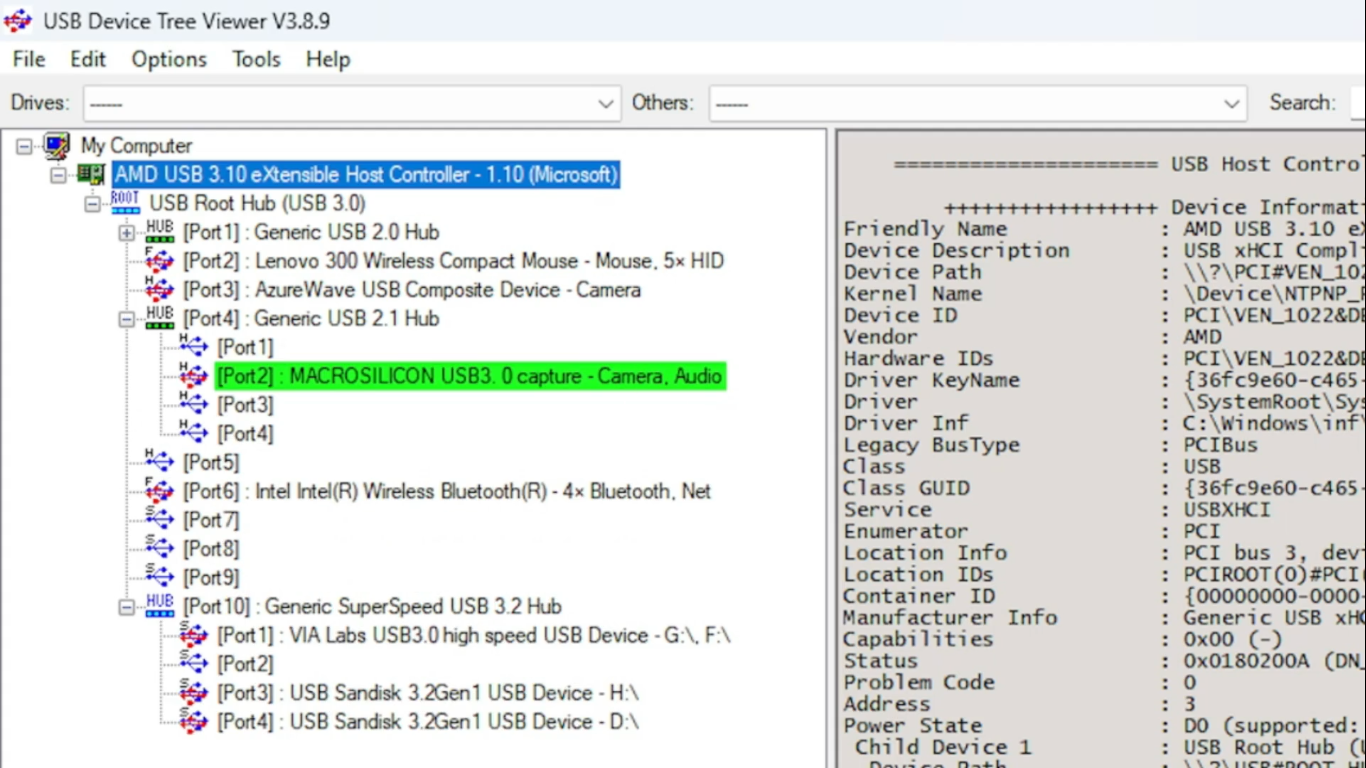
- On the right pane, the complete details of the USB peripheral are displayed. In summary, the USB Version will show the exact USB specification. The Demanded Current will confirm it.
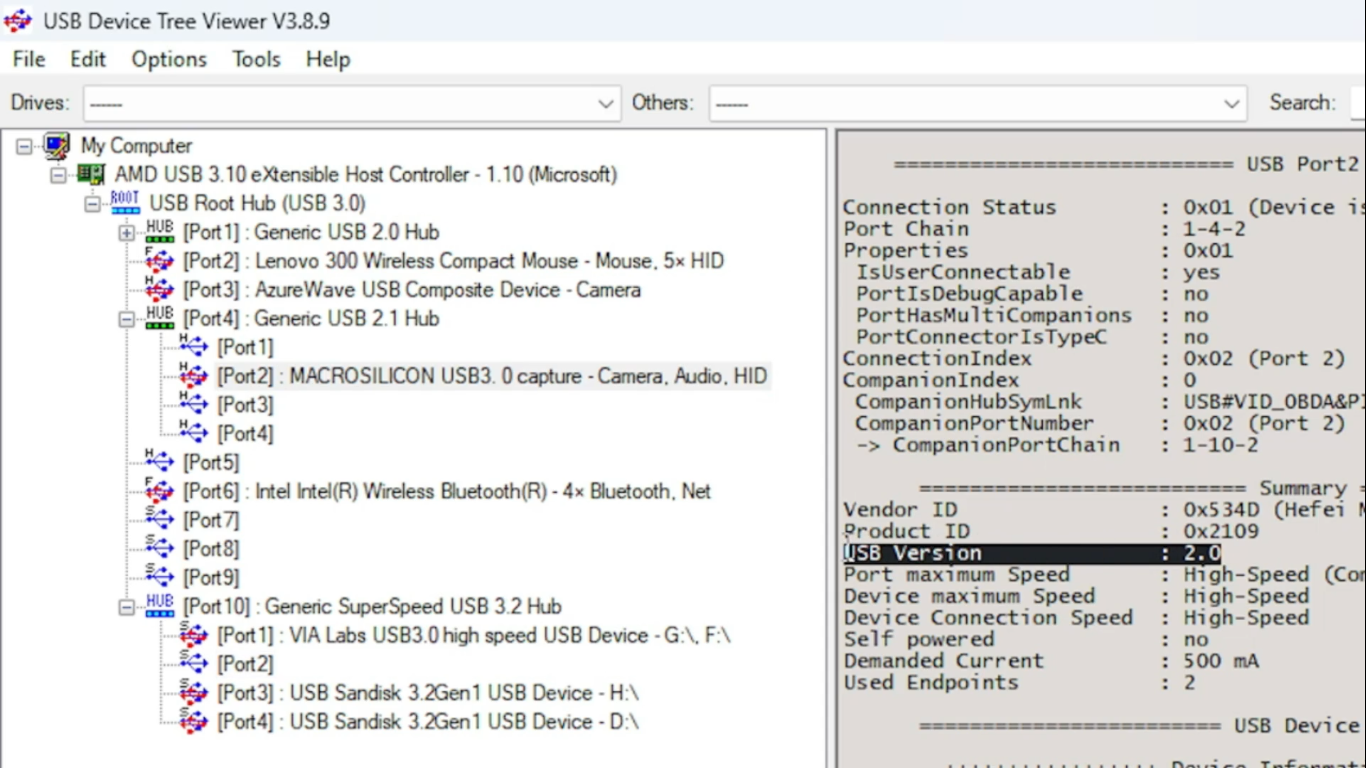


In this example, I plugged in a USB video capture card. The manufacturer named the peripheral “MACROSILICON USB 3.0 Capture”. But the truth is that this is a much slower USB 2.0 device.
Linux
On Linux, you can use commands to find out the USB specification of the connected device.
- Do not connect the USB peripheral yet. Open the command line. List the existing USB peripherals with:
-
lsusb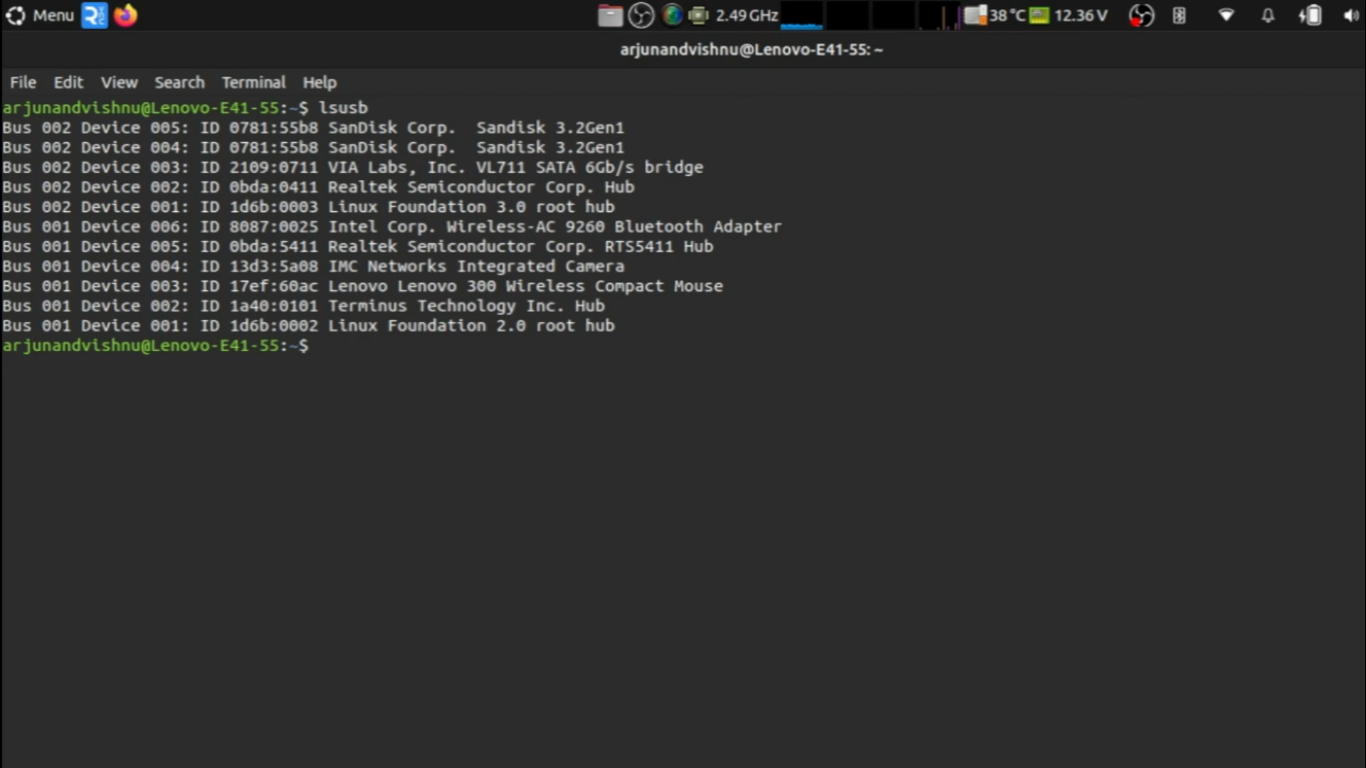
-
- Plug in the new USB peripheral and run the same command. By comparison, you can identify the USB device.
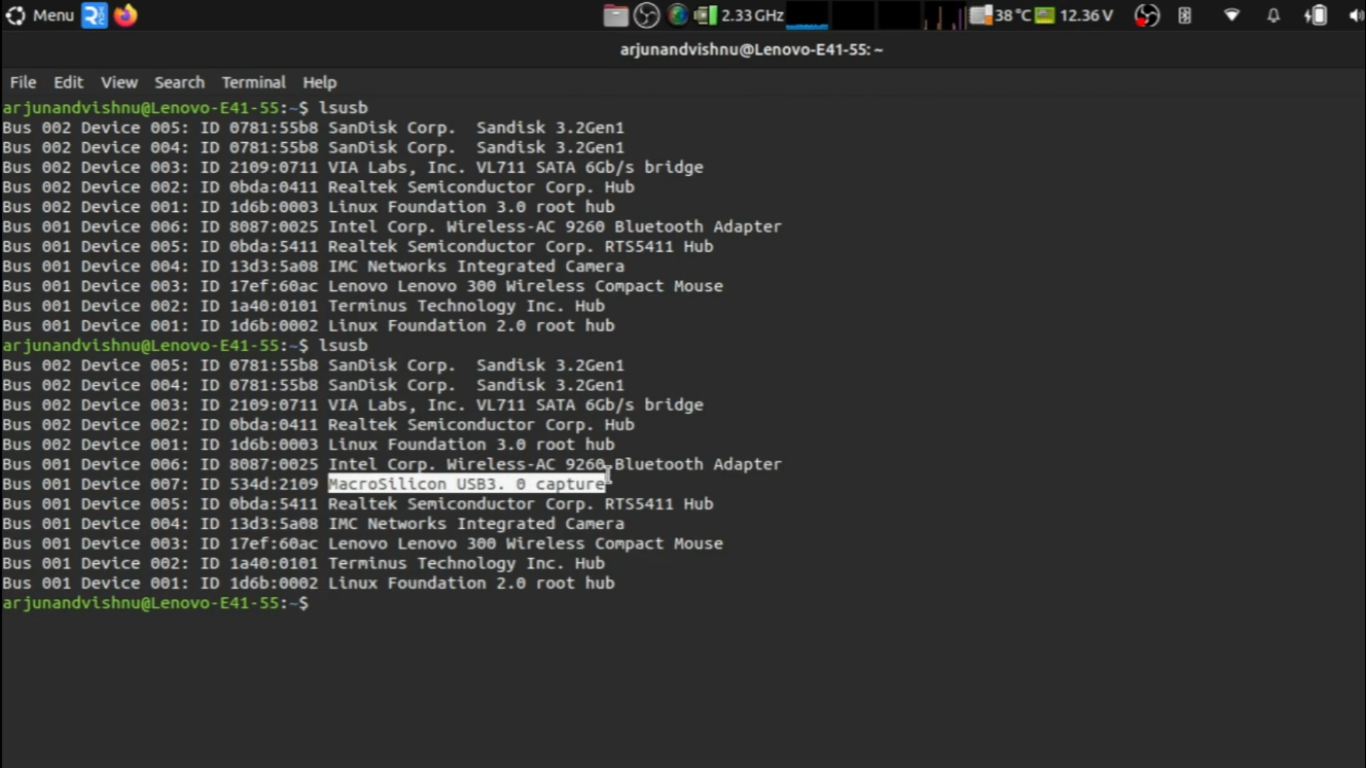
- Now, run the lsusb command along with bcdusb:
-
sudo lsusb -v | grep -iE "Bus|^Device Desc|bcdusb"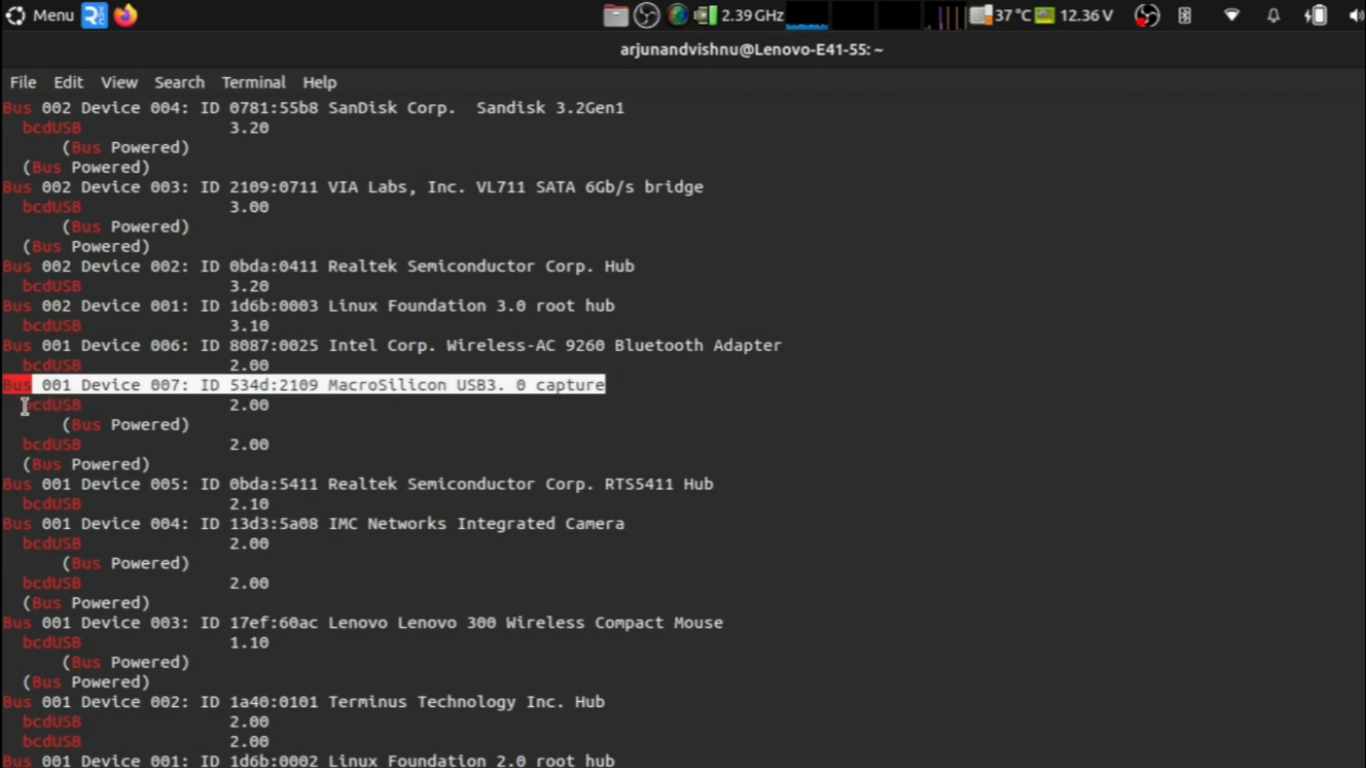
-


The output will show the true specification of the USB peripheral. In this case, the device named by the manufacturer as “USB 3.0” happens to be USB 2.0 only in reality.
If you’re worried that the device you bought has fake USB ports, unfortunately, many stores have limited return periods. Check your USB devices and ports and ensure they conform to the rated USB specification before the return period ends. Otherwise, you’ll be stuck with sluggish devices!